MacPip
How big is a screen recording on a Mac? I measured it
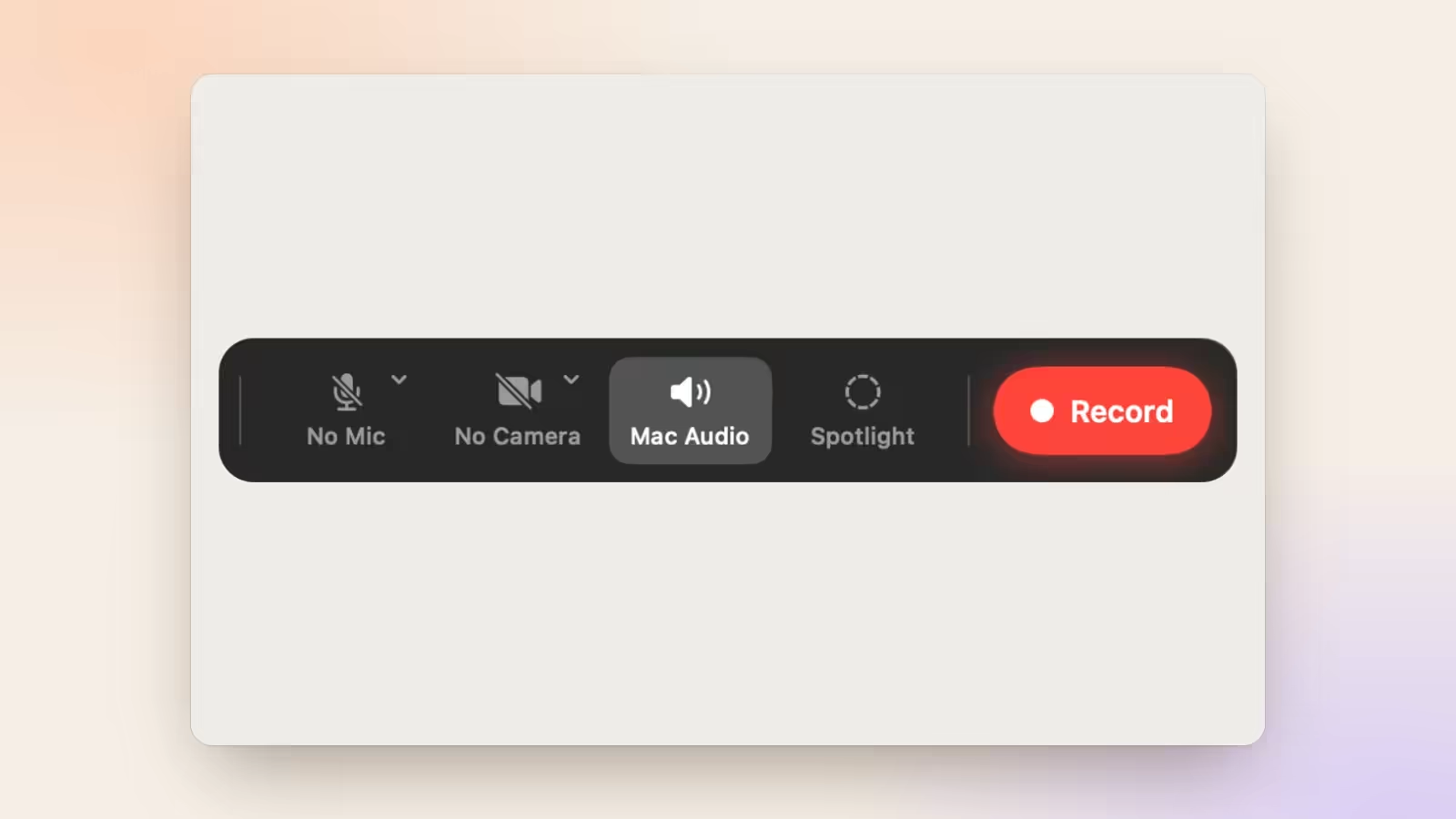
Clacky has a screen recorder, so I get this question a lot: why is my recording 2 GB? The honest answer is that it depends on three things, and one of them surprises people.
So I stopped guessing. I made four test recordings, saved each one seven ways, and wrote down every file size. Everything below comes from those files.

Justinas, maker of Clacky
8 min read
The short answer
How big is a 1-minute screen recording on a Mac?
At 1080p and 30 fps with the Mac’s own H.264 encoder, my test minutes came out between 2.5 MB (typing in a note) and 49 MB (scrolling a long page). A full Retina screen scrolling took 67 MB a minute, and ProRes took 160 MB to 1.8 GB. What moves on screen matters as much as resolution.
What decides the size of a recording
Size is bitrate times length. Pixels, frame rate and motion decide the bitrate.
A video file is, roughly, bitrate × length. Bitrate is how many bits the encoder spends on each second of video, usually in megabits per second (Mbps). Divide by 8 to get megabytes.
Four things push the bitrate up:
- Pixels. A full Retina screen has two to four times the pixels of a 1080p video.
- Frame rate. 60 fps has twice the frames of 30 fps. Encoders don't need twice the bits, but they need more (Clacky's estimate adds about 45%).
- Motion. Encoders store what changes between frames. A still screen is almost free. Scrolling text changes every pixel, every frame.
- The format. H.264, HEVC and ProRes spend bits very differently, as you'll see below.
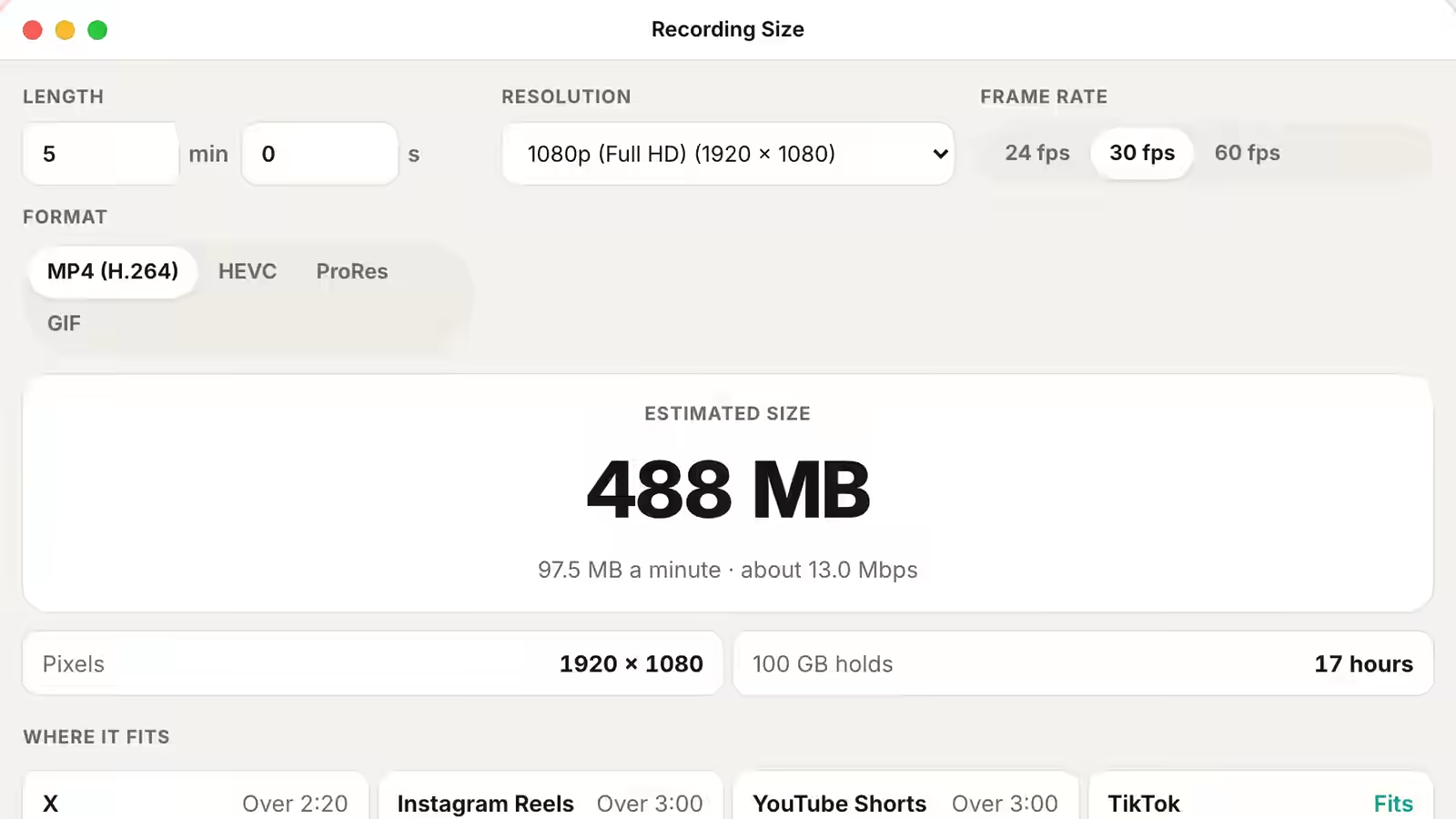
A common rule for H.264 at 1080p and 30 fps is about 13 Mbps, which is 97.5 MB a minute. That's the number Clacky's own export uses as an estimate. My tests show it's a ceiling more than a forecast.
Try it: drag the slider
300 MB
4 minutes, 1080p, 30 fps, HEVC
An estimate, the same one Clacky’s Studio export shows. A quiet screen often records several times smaller.
I measured it: four screens, seven formats
The same four test clips, encoded on my MacBook Pro, every file size written down.
Here's how I did it, so you can judge the numbers. I made four 30 fps clips from real pages, frame by frame, in a headless browser:
- Typing in a note, 1920 × 1080: a paragraph being typed into a plain notes page.
- Scrolling a long page, 1920 × 1080: Clacky's privacy page, which is mostly text, scrolling steadily.
- A video playing, 1920 × 1080: Clacky's launch film, full screen.
- Retina scroll, 2880 × 1800: the same scroll at about the size of a 15-inch MacBook Air's screen.
Then I saved each one as ProRes 422, H.264 and HEVC with the Mac's own hardware encoders (the same ones Mac apps use), H.264 at a fixed quality, the free x264 and x265 software encoders at their default quality, and a GIF. The test Mac was a MacBook Pro with an M5 Pro chip. Here are the results, in megabytes per minute:
| Format | Typing | Video | Scrolling | Retina scroll |
|---|---|---|---|---|
| ProRes 422 (hardware) | 162 | 498 | 960 | 1,808 |
| H.264, hardware, 13 Mbps cap | 2.5 | 37 | 49 | 67 |
| HEVC, hardware, 10 Mbps cap | 3.1 | 35 | 37 | 46 |
| H.264, hardware, quality 65 | 1.8 | 11 | 19 | 35 |
| H.264, x264 software, CRF 23 | 0.3 | 5.9 | 4.5 | 6.4 |
| HEVC, x265 software, CRF 28 | 0.4 | 4.0 | 3.9 | 7.5 |
| GIF, 720 px wide, 15 fps | 0.1 | 8.2 | 52 | 67 |
One honest limit: these are clean, simple screens. A screen full of photos, a game, or a camera feed is busier than any of them and will come out bigger.
What’s on screen matters as much as resolution
A minute of typing was 2.5 MB. A minute of scrolling was 49 MB. Same pixels, same encoder.
This was the surprise. Typing and scrolling had exactly the same pixels and frame rate, and the scroll came out almost 20 times bigger. When you type, only a few letters change between frames. When text scrolls, every line moves, and the encoder has to describe all of it.
The other thing the chart shows: Apple's hardware encoders treat the bitrate you give them as a cap, not a target. I asked for 13 Mbps (97.5 MB a minute), and no clip got anywhere near it. So a rule-of-thumb estimate is a safe upper bound: my real files came out 2 to 40 times smaller than it, and the calmer the screen, the bigger the gap.
Even GIF follows the same rule. A typing GIF was tiny. A scrolling GIF was bigger than the H.264 video, at less than half the width and half the frame rate. GIF is a fine format for a short, calm loop and a bad one for anything that scrolls.
Retina screens record a lot of pixels
A full MacBook screen is two to four times the pixels of a 1080p video.
Retina Macs draw everything at two pixels per point, so a screen that looks like 1440 × 900 is really 2880 × 1800. When you record the whole screen, the recorder sees every one of those pixels.
In my test, the Retina scroll took 67 MB a minute against 49 MB for 1080p with the same H.264 encoder. That's 2.5 times the pixels for about 1.4 times the size, because the extra detail is sharper, not newer. ProRes doesn't get that discount: it went from 960 MB to 1.8 GB a minute.
Most places you'll post a video don't show more than 1080p anyway. Recording an area or a window, or exporting at 1080p, throws away pixels nobody would have seen.
Try it: your screen
Reading your screen…
| One minute of your whole screen, HEVC | … |
| The same, H.264 | … |
| Recorded at 1080p instead, HEVC | 75 MB |
Read from this browser only. Nothing is sent. Sizes are the Studio estimate for one minute at 30 fps.
H.264, HEVC or ProRes: which one to save
HEVC for sharing, H.264 for old apps, ProRes only when you’ll edit heavily.

- HEVC (H.265) gave the smallest files from Apple's hardware encoders on everything that moved: 37 MB a minute of scrolling against 49 MB for H.264. Every recent Mac, iPhone and browser plays it, and X, YouTube and most apps accept it. In my typing test it was slightly bigger, because neither encoder needed anywhere near its cap.
- H.264 is the safe choice when you don't know where a file is going. Everything plays it.
- ProRes is huge on purpose: 160 MB to 1.8 GB a minute in my tests. It keeps every detail so an editor can cut it quickly without losing quality. Use it when you'll edit heavily, then export to HEVC.
The x264 and x265 software encoders made files 6 to 11 times smaller again at their default quality. They're slower than the hardware encoders and are what tools like HandBrake use, so they're worth it for a long recording you want to keep small.
How to make a screen recording smaller on a Mac
Record less, at 30 fps, and export as HEVC. Each step is free.
You can shrink a recording you already have, and you can record the next one smaller. The steps below work with the recorder built into macOS (press ⇧⌘5) and QuickTime Player, and with Clacky's Studio.
In QuickTime Player, File → Export As lets you pick a smaller resolution, and on recent versions of macOS the 1080p and 4K exports offer HEVC (Smaller File Size) as well as H.264.
In Clacky's Studio, the export sheet starts from where the video is going (X, Reels, TikTok, YouTube or LinkedIn) and shows the size before you export. For X it starts with a 512 MB target, its upload limit.
Upload limits worth knowing
The size and length limits that decide whether a video uploads at all.

These are the limits Clacky's export checks against, as of October 2026. They change, so check the platform's help page before a big upload.
| Where | Longest | Biggest file |
|---|---|---|
| X | 2 min 20 s | 512 MB |
| Instagram Reels | 3 min | 4 GB |
| YouTube Shorts | 3 min | |
| TikTok | 10 min | |
| 10 min | 5 GB | |
| Email (Gmail) | 25 MB |
The calculator below checks your recording against each of these, and can work backwards: tell it a size, like 25 MB for an email, and it gives you the bitrate to export at.
Try it: pick a limit
20 s
fits in a gmail attachment (25 MB)
At 1080p, 30 fps, by the Studio estimate. Limits as of October 2026. Trim or export smaller to fit more.
Make your next screen recording smaller
- Record an area, not the whole screen. In the macOS recorder (⇧⌘5) choose Record Selected Portion. In Clacky, pick an area or one window. Fewer pixels, smaller file.
- Stay at 30 fps. Screen recordings rarely need 60 fps. Keep 60 for games and fast animation.
- Scroll less, pause more. Scrolling was the most expensive thing in my tests. Jump to a section instead of scrolling slowly through it.
- Trim the start and the end. Every second costs the same. Cut the bit where you reach for the Stop button.
- Export as HEVC at 1080p. In QuickTime Player: File → Export As → 1080p, then HEVC (Smaller File Size) if your Mac offers it. In Clacky’s Studio: pick where it’s going, and the size follows.
Estimate your recording’s size
Open it on its own pageA free calculator: set the length, resolution, frame rate and format to see the size, MB per minute and where it fits. It uses the same rule as Clacky’s export, so think of it as the ceiling.
The tool loads here as you scroll. You can also open it on its own page.
Nothing you do in it is uploaded or saved.
Questions
Why is my Mac screen recording so big?
Usually three things at once: the whole Retina screen was recorded (millions of pixels), there was a lot of motion (scrolling or video), and it was saved in a high-bitrate format. Record an area at 30 fps and export as HEVC.
How many MB is a 10-minute screen recording?
In my tests, 10 minutes at 1080p with the Mac’s H.264 encoder would be about 25 MB of typing, about 370 MB of video, or about 490 MB of steady scrolling. A full Retina screen would be bigger, and ProRes would be several gigabytes.
Does the macOS screen recorder use H.264?
The recorder you open with ⇧⌘5 saves .mov files and has no quality setting. To change the format or size, open the file in QuickTime Player and use File → Export As.
Is HEVC better than H.264 for screen recordings?
For anything that moves, yes: in my tests HEVC was 24% smaller than H.264 on the scroll and 31% smaller on the Retina scroll. On a calm screen the two were close. H.264 still plays in more old apps.
Does recording at 60 fps double the size?
Not quite. The encoder only stores what changes, so 60 fps usually costs well under twice as much. Clacky’s estimate adds about 45% for H.264 and HEVC.
Written by Justinas Rolando
I make Clacky and build it in public. I write about what I learn making a small Mac app. More about me on the about page, and a free newsletter at justinasrolando.com.