MacPip
Do keyboard sound apps record what you type? How to check on a Mac
When you install a keyboard sound app on a Mac, macOS asks for a permission called Input Monitoring. The warning is a little scary, and it should be: a keylogger asks for exactly the same thing.
I make one of these apps, Clacky, so I've thought about this more than most people. Here's what the permission really allows, what Clacky does with a key press (with the code's own rules), and how to check any app yourself.

Justinas, maker of Clacky
6 min read
The short answer
Do keyboard sound apps record what you type?
They can, because Input Monitoring lets an app see key presses in every app. A well-made one doesn’t. Clacky’s keyboard sounds listen for key down/up only; Clacky never records, stores or sends which keys are typed, and it respects Secure Input, so nothing plays in password fields. You can check any app’s permissions and network use yourself.
Why a keyboard sound app needs a scary permission
To play a sound for a key press in any app, an app has to hear that key press. macOS asks you first.

macOS keeps apps in their own lanes. An app normally only hears the keys you press while its own window is in front. To make a sound when you type in Safari, Slack or Xcode, a keyboard sound app has to listen to key presses system-wide, and macOS only allows that with Input Monitoring, in System Settings → Privacy & Security.
That permission is an all-or-nothing door. Once it's on, the app could read every key. macOS can't tell a sound app from a keylogger, so it warns you the same way for both. What matters is what the app does once the door is open, and you can't see that from the permission alone.
That's why Clacky shows its rules on the same screen that asks for the permission, before macOS does.
What Clacky actually does with a key press
It hears “a key went down” and “a key came up”, keeps the kind of key, and forgets the rest.
Here's the plain version of what the code does:
- It only listens. Clacky asks macOS for a listen-only view of key events, so it can't change or block a key, or type anything itself.
- Only while keyboard sounds are on. With keyboard sounds off, Clacky doesn't ask for key events at all, just clicks and scrolls.
- A key becomes a kind. Each press is turned into one of a few kinds (letter, space, return, delete, tab, escape, arrow, function key, modifier) and a side of the keyboard (left, middle or right), so space sounds deeper and keys on the right sound a little to the right. Every letter, digit and symbol is the same kind: “letter”.
- Then it's gone. The key code itself isn't kept anywhere: no list, no log, no file, nothing sent. Clacky never turns a key into a character, so it never knows you typed an “a”.
Try it: press any key
| Kind of key | press a key |
| Side of the keyboard | press a key |
| Which key it was | never kept |
| Key presses here | 0 |
This runs only in this page. It never reads which key you pressed, and nothing is stored or sent.
So, in one sentence: keyboard sounds listen for key down/up only; Clacky never records, stores or sends which keys are typed, and it respects Secure Input.
What Clacky keeps, and what it never has
A count of key presses for your own stats. Never which key, never what you typed.

I want to be exact here, because “we don't collect anything” is a promise people rightly don't believe.
| Clacky | |
|---|---|
| Which key you pressed (letters, numbers, passwords) | Never kept. Not stored, not logged, not sent |
| Anything you typed, as text | Never has it. Keys are never turned into characters |
| How many keys you pressed each day | Kept on your Mac, for your own stats |
| Daily totals, like keys played and how many were space or return | Sent with the anonymous usage stats, never which letter; one switch in Settings turns them off |
| Your screen, your apps’ names, where you click | Never sent |
The counts are what make the weekly stats work, and they can't be turned back into text: millions of different sentences have the same number of key presses.
Secure Input: why the sounds stop in password fields
When you type a password, macOS stops other apps from hearing your keys at all.
macOS has a feature called Secure Input. When a password field is focused (in Safari, in a login window, in a password manager), the app that owns it switches Secure Input on, and macOS stops delivering key presses to every other app, Clacky included.
Clacky checks for it as well and stays completely silent while it's on, so a password never even makes a sound. If your keyboard sounds ever go quiet in a normal app, an app has probably left Secure Input on by mistake. You can see which one in Terminal:
ioreg -l -w 0 | grep -i SecureInputIf it prints a line with kCGSSessionSecureInputPID, the number after it is the process that turned it on. Look it up in Activity Monitor, then quit that app or click out of its password field.
Try it: type in each field
Keys heard by the demo: 0
Both fields are local to this page and cleared when you leave it. The demo listens to the first field only, the way macOS keeps password keys from other apps.
How to check any keyboard app yourself
Four free checks that work for Clacky and for every other app on your Mac.

You shouldn't have to take my word for any of this. The steps below show you which apps can hear your keyboard, and whether an app talks to the internet more than it should. They work the same for every app, not only Clacky.
The network check is the strongest one. An app that only plays sounds has no reason to send much: Clacky's traffic is an update check (about once an hour), licence activation, and anonymous usage stats you can turn off. A tool like LuLu (free and open source, from Objective-See) or Little Snitch shows every connection an app makes, and asks you before it's allowed.
If you'd like to test a keyboard without installing anything, the free keyboard tester below runs in your browser and shows each key as you press it. Nothing you type in it leaves the page.
Check which apps can read your keyboard on a Mac
- Open the Input Monitoring list. Apple menu → System Settings → Privacy & Security → Input Monitoring. Every app with a switch here can hear key presses in other apps.
- Switch off what you don’t recognise. Turn off any app you don’t use or didn’t expect. The app simply stops hearing keys until you turn it back on.
- Check Accessibility too. In the same Privacy & Security section, open Accessibility. Apps here can control your Mac, which is a bigger permission. A keyboard sound app doesn’t need it just to play sounds.
- Watch what the app sends. Open Activity Monitor → Network and look at Sent Bytes for the app over a day of typing, or use a firewall like LuLu to see every connection it makes.
Test your keyboard in the browser
Open it on its own pageA free keyboard tester: press every key and watch it light up, with its key code. It runs on this page, and nothing you type is sent anywhere.
The tool loads here as you scroll. You can also open it on its own page.
Nothing you do in it is uploaded or saved.
Questions
Is it safe to allow Input Monitoring on a Mac?
It’s safe for an app you trust, and only for that app. Input Monitoring lets an app hear key presses everywhere, so give it only to apps that need it (keyboard sound apps, some shortcut tools) and switch it off for anything you stop using.
Can a keyboard sound app see my passwords?
Not while Secure Input is on, which password fields switch on: macOS stops delivering those keys to other apps. Clacky also stays silent then. Secure Input only covers proper password fields, so a trustworthy app matters for everything else.
Does Clacky work without Input Monitoring?
Partly. Without it, Clacky’s sounds only play inside its own windows. With it, every click, scroll and key in every app gets a sound.
Why do my keyboard sounds stop sometimes?
Usually an app has turned Secure Input on, often a password field left focused. Click out of it, or run ioreg -l -w 0 | grep -i SecureInput in Terminal to find which app it is.
How do I turn Clacky’s keyboard sounds off?
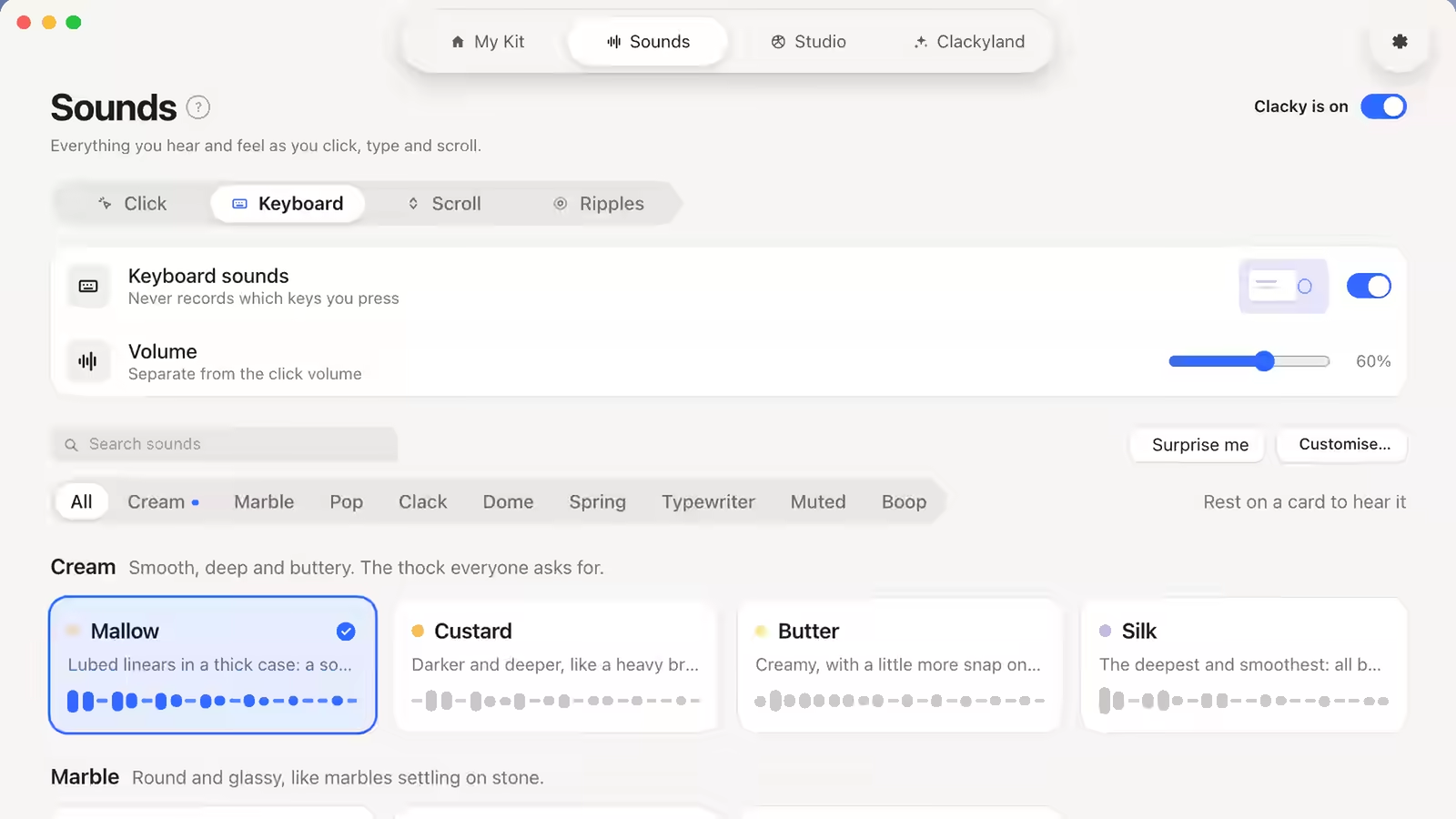
Open Clacky → Sounds → Keyboard, or flip the Keyboard Sounds switch in My Kit. With them off, Clacky doesn’t listen to keys at all.
Written by Justinas Rolando
I make Clacky and build it in public. I write about what I learn making a small Mac app. More about me on the about page, and a free newsletter at justinasrolando.com.